

If you need to submit a tenant insurance claim, follow the instructions below based on what you see in your SingleKey account. Providing complete information and the required documents will help avoid delays.
Option 1: If You See the “Submit a Claim” Button
-
Log in to your SingleKey account and go to the Tenant Insurance section.
-
Click on Submit a claim.

3. Fill out the Tell us what happened form.


4. Download, complete, and upload the claim form. notice-of-loss-submission.pdf
5. Upload any additional supporting documents, if applicable.

1. Prepare Your Claim
Before submitting, gather the following:
-
Completed claim form (downloaded from your SingleKey account)
-
Notice of Loss (what happened, including the date and cause)
-
Insurance certificate
-
Photos of the damage (if applicable)
-
Receipts or proof of ownership (if available)
-
Repair estimates or reports (if applicable)
Providing complete and accurate information helps prevent processing delays.
2. Submit Your Claim by Email
After completing the online form and gathering your documents, submit your claim by email.
Important: Send your email to both of the following addresses:
If one of these addresses is missing, your claim may be delayed.
Email Subject
Tenant Insurance Claim – [Your Full Name]
Sample Email
Hello,

Please find attached my completed claim form and all supporting documents for my tenant insurance claim.

Thank you,
[Your Full Name]
[Your Phone Number]
Before You Send
Confirm that:
-
✓ Your completed claim form is attached.
-
✓ All supporting documents are included.
-
✓ Both email addresses are included.
-
✓ Your contact information is provided.
Once your email has been sent, your claim will be submitted to the insurer (MSI), with Walnut copied for visibility.
Option 2: If You See a Message to Download a Claim Form
If your Tenant Insurance page displays a message similar to: “To submit a claim on your policy, please download and complete this claim form”, follow these steps:
-
Log in to your SingleKey account and go to the Tenant Insurance section. You will see a message like: “To submit a claim on your policy, please download and complete this claim form.”

-
Download and complete the claim form before proceeding.
-
Fill out the form below and click on Continue
-
Once you’re done, you can click on the blue button that says Continue to Walnut to continue submitting your online form directly with the insurance provider


Note: Review Your Coverage
Before submitting your claim, review your policy documents to confirm your coverage is active and understand what is included.
Your policy will outline:
-
Coverage start date
-
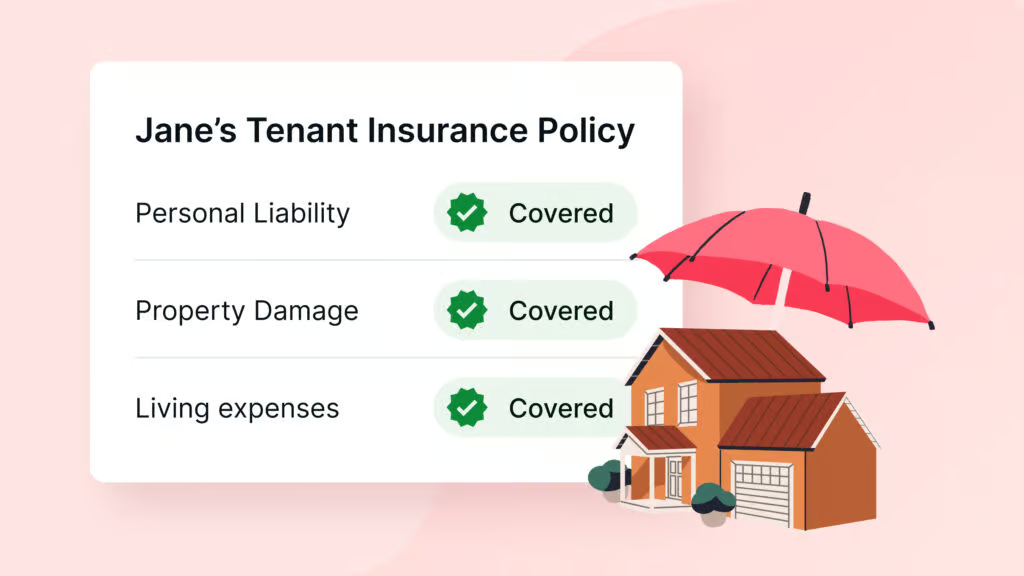
Types of coverage (e.g., personal property, liability, additional living expenses)
-
Limits, deductibles, and exclusions
After You Submit
After submitting your claim:
-
Monitor your email for updates
-
Respond promptly to any requests for additional information
-
Keep copies of everything you submitted
An adjuster will be assigned and will contact you with next steps.
Tips for a Smoother Claims Process
-
Submit your claim as soon as possible
-
Take clear photos/videos before cleaning or discarding items
-
Keep receipts and repair estimates
-
Provide detailed and accurate information
-
Notify your landlord or property manager if required
Need Help?
If you have any questions, contact us:
-
Email: info@singlekey.com
-
Phone: 1-877-978-1404
We’re here to help.